✨Mouse Trail
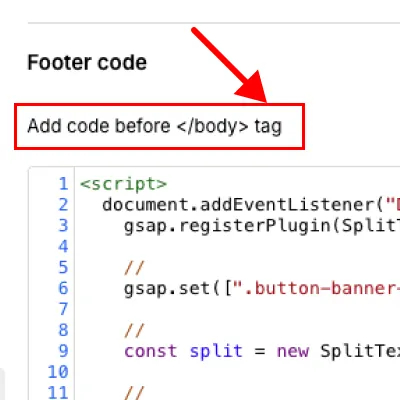
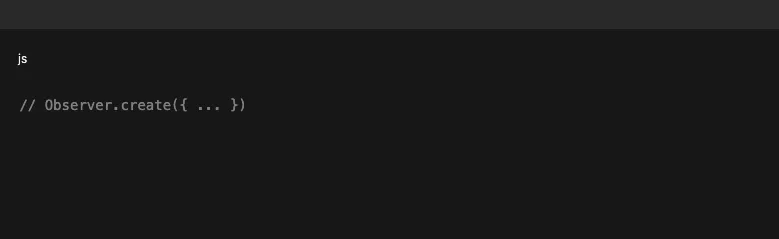
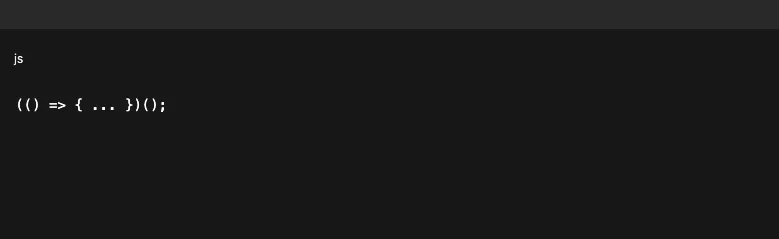
This script creates a mouse-following image trail effect using GSAP only (no CSS stylesheets, no native event listeners).All interaction is handled via GSAP Observer and GSAP Ticker.
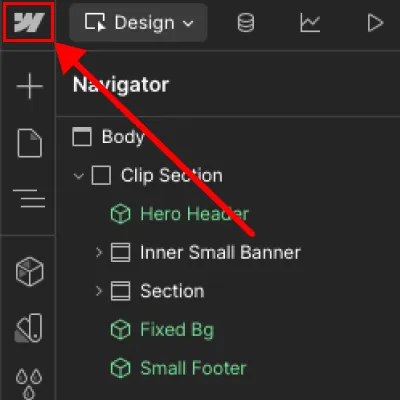
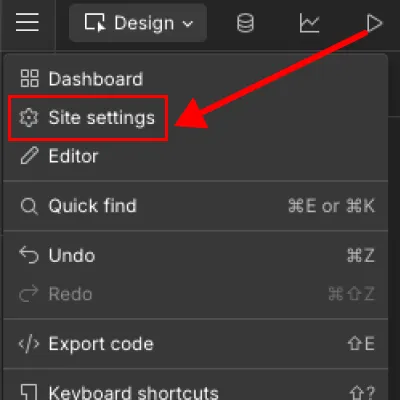
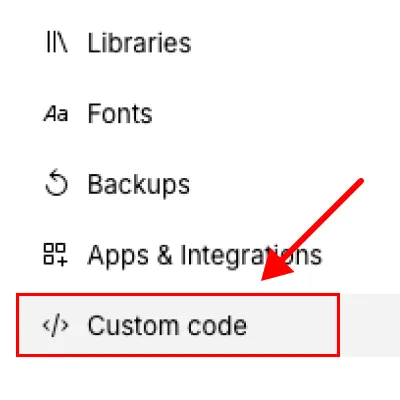
This script is added in the global settings, not on a single page.
- It runs on all pages
- Any change affects the entire website
- You only edit it once
- Site Settings → Custom Code (Head)
- Global <head> embed
- Main layout / global template
- Project-wide custom code
- Images follow cursor movement
- Images fade in, move, and fade out
- No CSS animations
- No native JS listeners
- Fully powered by GSAP + Observer
The GSAP mouse trail works only if this exact structure is present.Each element has a specific role in the animation.
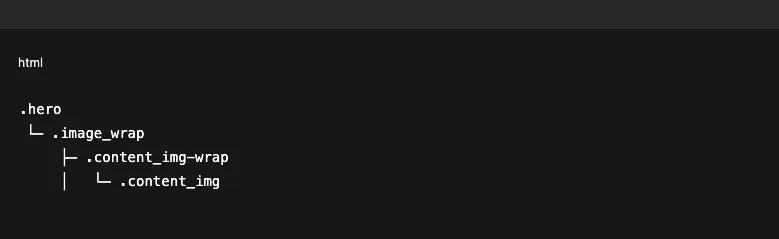
- .hero → main section where effect is active
- .image_wrap → animation container (relative positioning)
- .content_img-wrap → animated item (trail element)
- .content_img → image that fades/scales out
⚠️ If class names don’t match → animation will not work.
These are the only values most users should touch.
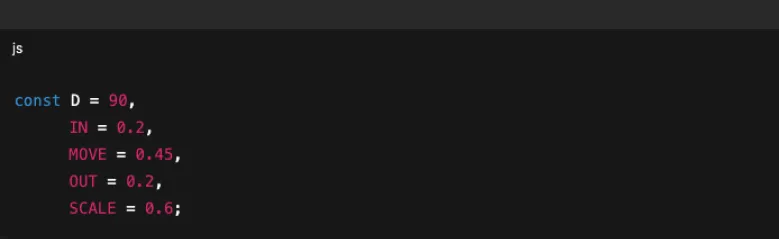
- How far the mouse must move before spawning the next image
- Lower value (40–60) → more images, denser trail
- Higher value (120–160) → fewer images, cleaner trail
- Smooth & rich → 60–80
- Minimal & elegant → 100–140
💡 Performance tip: Higher values = fewer animations = better performance.
- How fast a new image appears
- Lower (0.1) → snappy, sharp
- Higher (0.3–0.4) → softer, cinematic
- Fast UI → 0.12–0.18
- Luxury/editorial → 0.25–0.35
- How long the image travels from previous point to new point
- Lower (0.25) → aggressive, energetic
- Higher (0.6–0.8) → slow, floaty motion
- Responsive UI → 0.3–0.4
- Calm premium feel → 0.55–0.7
- How fast images disappear
- Lower → sharp cut
- Higher → smooth dissolve
- Clean → 0.15–0.25
- Dreamy → 0.35–0.5
- Image size at the end of animation
- Lower (0.4) → strong shrink
- Higher (0.85–1) → barely shrinks
- Artistic → 0.45–0.6
- Minimal → 0.75–0.9
- Renaming class names without updating JS
- Adding CSS positioning to .content_img-wrap
- Setting overflow: hidden on .image_wrap
- Making D too small (performance issues)
- More images → decrease D
- Smoother feel → increase MOVE
- Softer visuals → increase OUT
- Snappier UI → decrease IN
💡 Change one value at a time and test.mance.
🎯 Split Text Animation
(Attribute-based)
This animation is triggered automatically when specific data attributes are added to an element.No extra JavaScript is required from the user.
- data-split_fade - enables split-text fade animation for the element. When this attribute is present, the text will be animated character-by-character or line-by-line.
- data-split_element - defines the text element that will be split and animated. The script looks for this attribute to know what text to process.
- The text is automatically split into smaller units (chars / words / lines)
- GSAP animates opacity and position
- The animation plays on page load or on scroll (depending on setup)
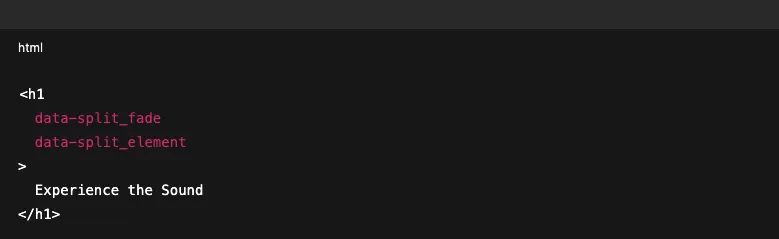
💡 Result: The heading will fade in smoothly with a split text effect.
- Text content is wrapped into spans by the GSAP Split logic
- Each span receives a staggered animation
- Opacity and transform values are animated progressively
- Hero titles
- Section headings
- Quotes
- Call-to-action text
- Attributes must be present
- Works only on text-based elements (h1–h6,p,span,a)
- Avoid line breaks (<br>) inside animated text
- Do not wrap split text inside other animated elements
- Short text → faster, punchy animation
- Long text → smoother, more cinematic reveal
.gif)
.png)